

Pintómetro user guide
Version 1.9.2 · updated 10/31/2026
Why I made Pintómetro
Pintómetro was born from a question every modeler asks when reading the instructions: "they call for XF-62 and I have Vallejo, what do I use instead?".
I'm a scale modeler from Córdoba, Argentina, and I keep my collection on Scalemates. The equivalence apps that existed solved part of the problem: they didn't include the Argentine brands I use, and they didn't know which paints I actually had on my shelf. I wanted a free tool that put Komboloi, Ink Color, MDI or ACE next to Tamiya and Vallejo, and that also told me what I have, what I'm missing for a kit and what to thin it with.
That's how it started, as a personal project, and it grew with the ideas of the friends who tried it. This guide explains what each part does and how to use it.
What it does and what it doesn't
Pintómetro brings together more than 12,000 scale-modeling paints from 32 brands, with Argentine brands first, plus about 270 supplies and tools. It runs in the browser on your phone or computer, with no sign-up and no ads.
| Pintómetro can | Pintómetro can't |
|---|---|
| Find a paint by code, name or reference (FS, RAL, RLM, BS, ANA) and show its equivalents in other brands | Guarantee that two "equivalent" paints are identical: colors are approximate and it's worth testing first |
| Find the paints closest to a color, from a photo or the camera | Measure a color with lab precision: light and camera change the result |
| Suggest mixes in parts to reach a color | Promise the mix will come out the same: it's a starting point to test in a bottle cap |
| Keep your stash of jars and your shopping list, and share it by WhatsApp | Buy for you or show prices or shops |
| Check a kit's colors against your stash, even by reading the instructions' color table from a photo | Read every instruction sheet: blurry, skewed photos or unusual tables need fixing by hand |
| Read a jar's label with the camera to add it | Recognize tins with an embossed number, like Humbrol's: look those up by hand |
| Tell you what to thin, clean or varnish each line with | Add your own paints to the catalog: I maintain the catalog, with every version |
| Keep your data in your own Google Drive or OneDrive, and import your stash from Scalemates | See your data: there's no Pintómetro server and no Pintómetro accounts |
| Work in Spanish or English, in light or dark mode, and offline once installed | Remember your data if you clear the browser's data and didn't sign in with an account |
Getting started
Pintómetro opens at pintometro.app from any browser. No sign-up needed.
Install it on your phone
- Open pintometro.app in Chrome (Android) or Safari (iPhone).
- On Android: menu ⋮ › "Install app" or "Add to Home screen". On iPhone: Share button › "Add to Home Screen".
- Done: it shows up with its icon like any other app, updates itself and works even with a weak signal.
When a new version comes out, just close the app and open it again.
The welcome
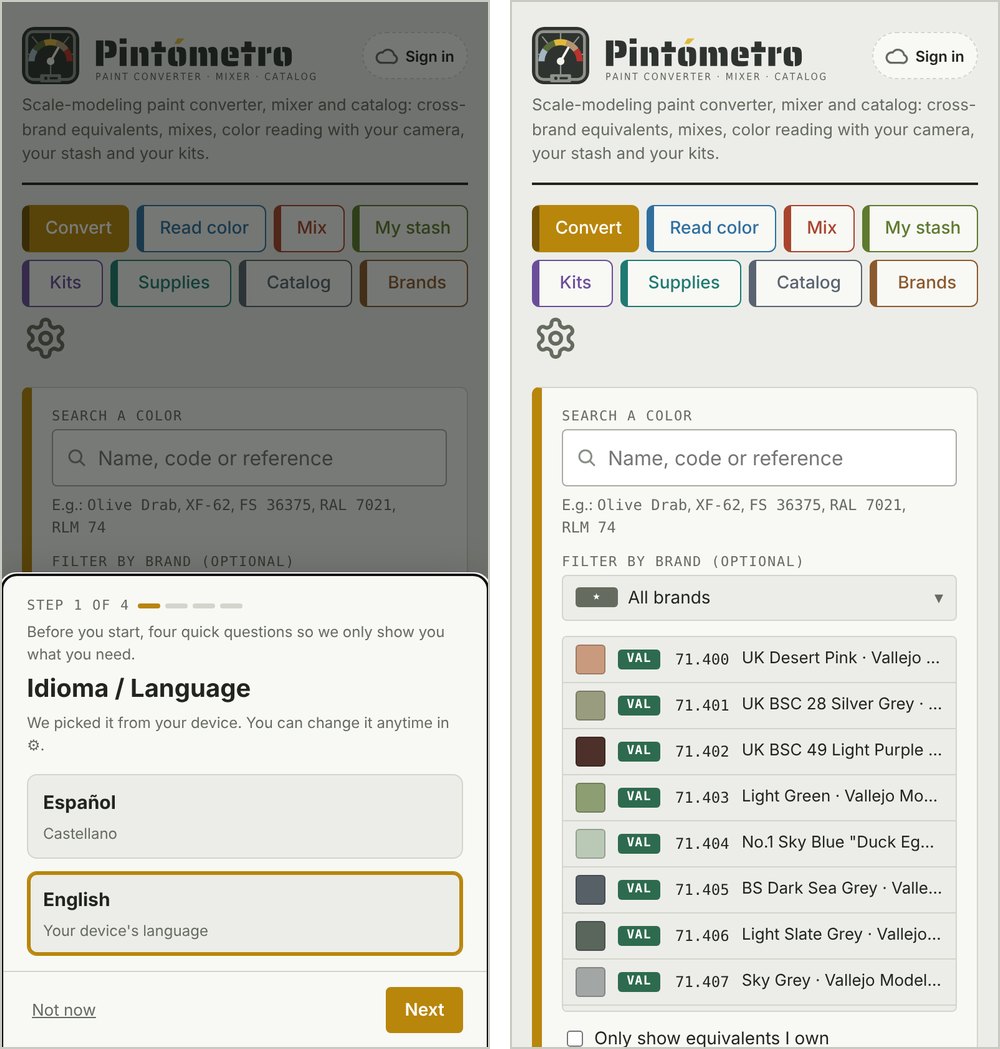
The first time, Pintómetro asks you a few questions to fit your needs. You can change all of them later in ⚙ Settings.
- Idioma / Language: Spanish or English. It's picked automatically from your phone's language.
- Which brands you use: those come first in every search.
- What you mostly paint: aircraft, armor, ships, figures, cars… Pintómetro suggests matching search shortcuts.
- How much detail you want to see: Simple or Full.
The menu
At the top are the sections, each with its own color: Convert, Read color, Mix, My stash, Kits, Supplies, Catalog and Brands. The ⚙ gear opens Settings. Next to the logo, the cloud shows whether your data is saved in your account.
Convert
Convert answers the usual question: which paint from another brand replaces the one the instructions call for.
- Type the code, name or reference in the search box: "XF-62", "70.924", "Olive Drab" or "FS 34087". Dots, dashes and spaces don't matter.
- If you like, filter by brand to narrow the list.
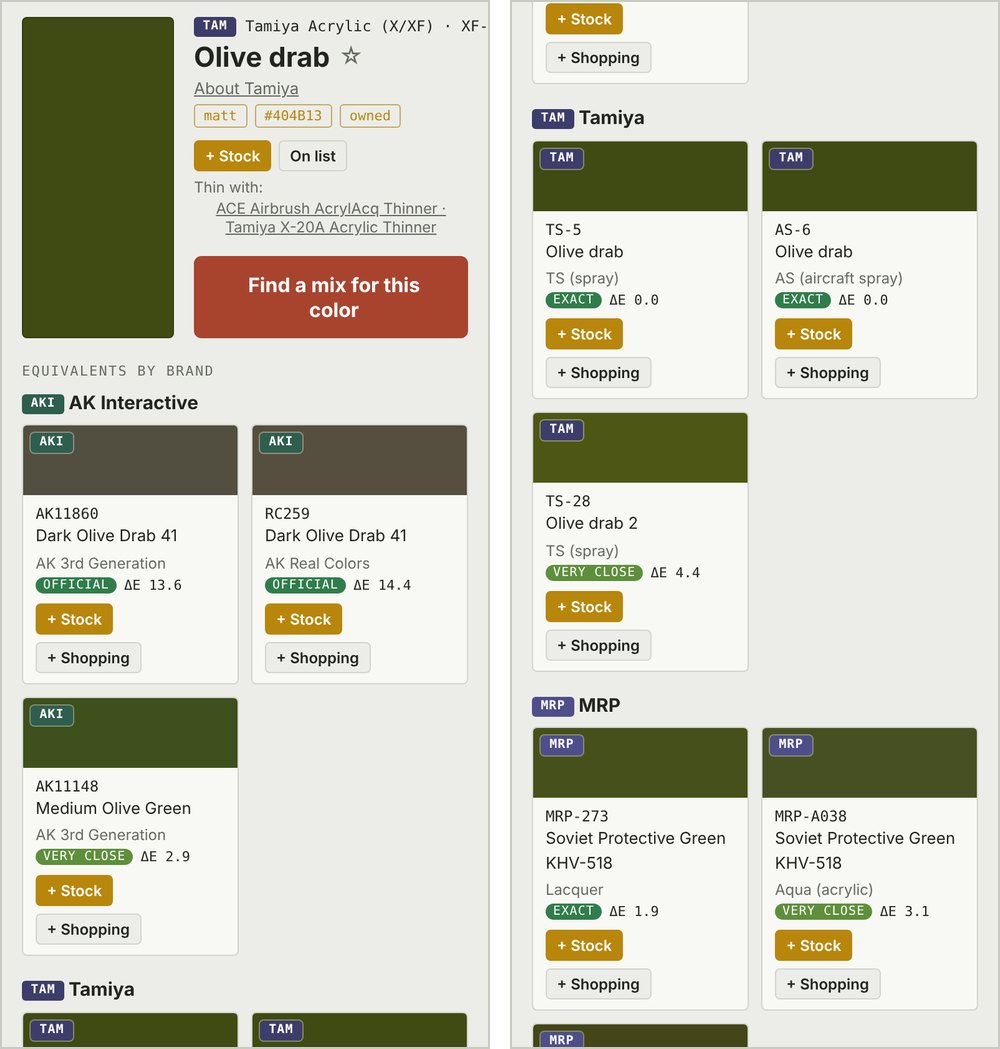
- Tap the paint in the list. Its card appears at the top: the color, the name, the finish, the official reference and what it thins with.
- Below are the equivalents by brand, sorted from closest to least close. Each one has a label:
- Declared: the manufacturer itself publishes that equivalence.
- Same reference: both brands say they match the same standard (for example, FS 34087).
- Exact, very close, close or approximate: calculated from the color.
- With + Stock or + Shopping you add that paint, or any of its equivalents, to your stash or your shopping list.
Handy options
- Only show equivalents I own: shows only the paints in your stash that work as a replacement.
- Find a mix for this color: takes you to Mix with that color as the target.
- Search by reference: if you type a reference (FS, RAL, RLM, BS, ANA), you see every paint that declares it.
In Full mode you also see each equivalent's ΔE number: under 2 is practically the same; between 2 and 5 you notice it side by side; over 10 it's a different color.
Read color
Read color finds the paints closest to a color you see: a reference photo, a finished model or a sample.
- Choose the image: take a photo with the camera or use one you already have.
- Calibrate the light (optional): with the circle on a white sheet of paper, under the same light, tap Calibrate with white paper. That way Pintómetro corrects the tint of the lighting.
- Read the color: tap the spot you're interested in and then Read this spot.
The closest paints appear, with your brands first, and from each one you can see its equivalents or take it to Mix.
A phone camera doesn't see colors the way the eye does: with daylight and no shadows the result improves a lot. Use it as a guide for choosing, not as an exact measurement.
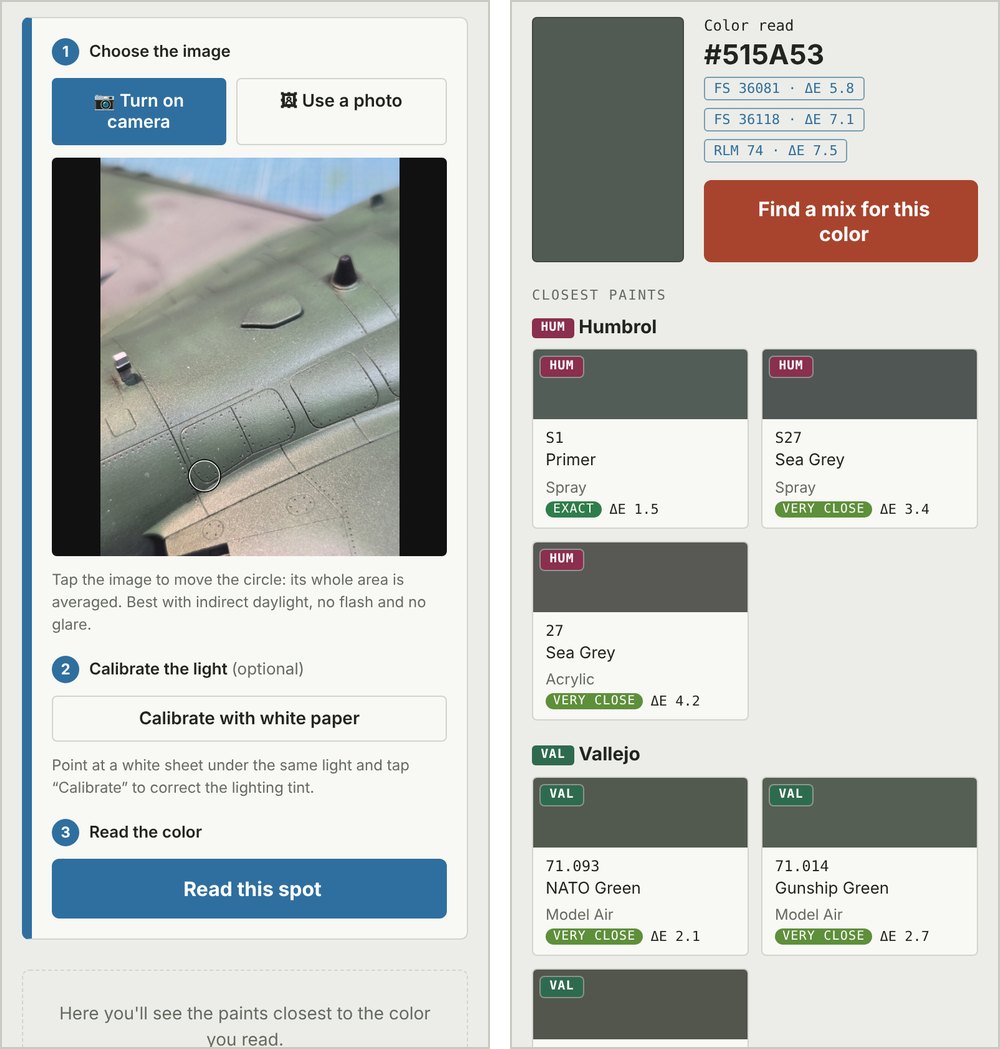
A real example. This aircraft is painted with Vallejo Model Color 70.895 Gunship Green. With the circle on an even, shaded area, Pintómetro read #515A53, and among the Vallejo paints it suggests 71.014 Gunship Green, which is the same color in the Model Air line. Where the light hits, the same green reads much lighter, almost gray: that's why it's best to pick an area without sheen and, if you can, calibrate with a white sheet.
Mix
Mix suggests how to reach a color by combining paints from one line, in parts.
- Choose the target color:
- a reference (FS, RAL, RLM…);
- a paint from another brand: first you pick the brand and line, then the paint;
- or a free color.
- Choose which line to mix with, for example Vallejo Model Air or Tamiya. Your brands come first.
- Adjust the options:
- Only the ones I own: uses only paints from your stash.
- Try 3-paint mixes: also looks for combinations of three paints.
- How finely to split it (up to 10 parts).
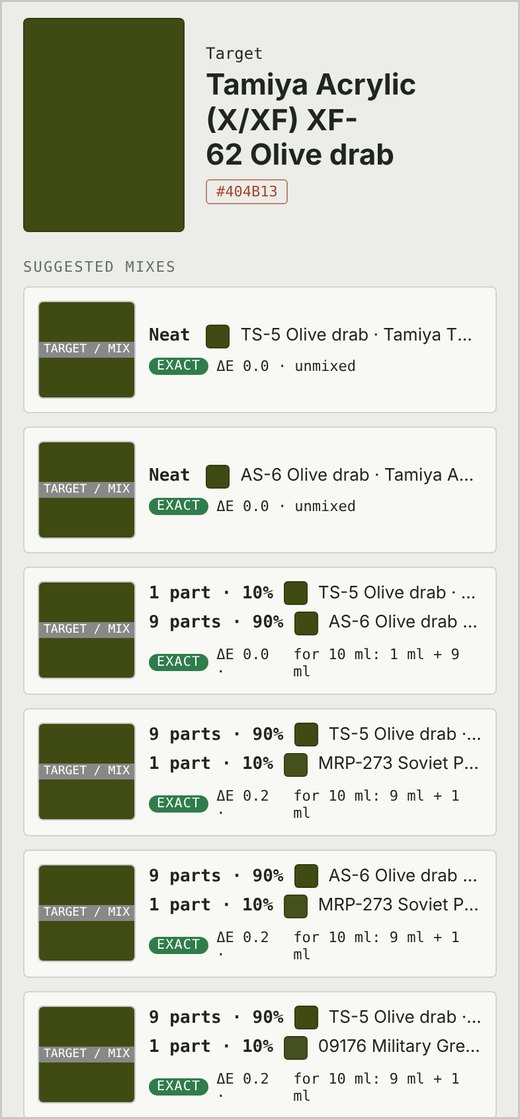
- Look at the suggested mixes: each one shows the parts of each paint, the resulting color next to the target and how close it gets.
Mixes are calculated from each paint's color, so they're a starting point: try a few drops in a bottle cap before loading the airbrush.
My stash and Shopping list
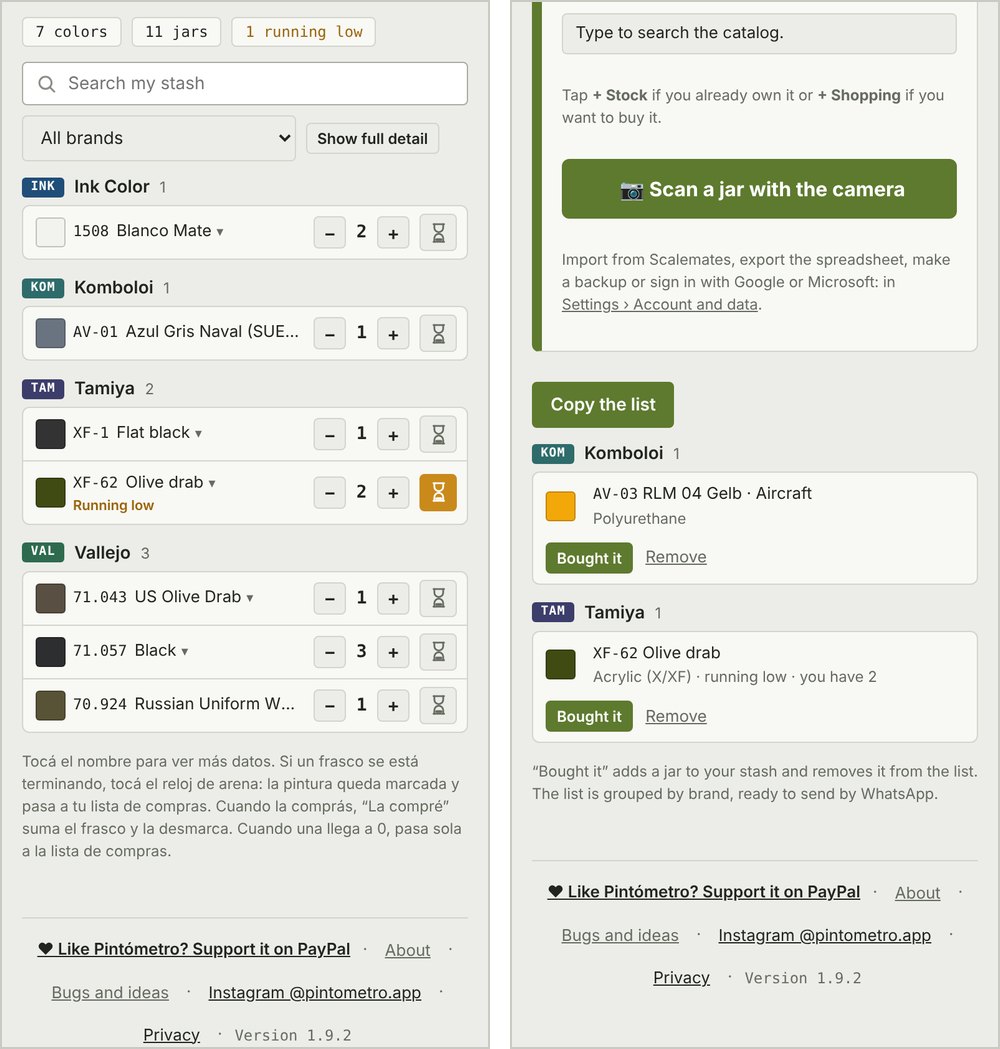
My stash is your paint shelf; the Shopping list is what you still need to buy. With that, Pintómetro can tell you which equivalents you already have and what you're missing for a kit.
Adding paints
- In My stash, use the search box just like in Convert: by code, name or reference. It also finds thinners, varnishes and other supplies.
- Tap + Stock if you have it or + Shopping if you want to buy it.
- You can also add from Convert, Read color, Kits, Supplies or the Catalog, with the same buttons.
Your stash
- Paints are grouped by brand, in a compact view. Tap the name to see the rest of the card.
- With − / + you change the number of jars. If it reaches 0, it moves to the Shopping list on its own.
- The hourglass marks a paint that's running low: it stays in your stash and is added to the shopping list.
- At the top you have a search box and a filter of its own, for example to show only the paints that ran out.
Shopping list
- It gathers what you added with + Shopping, what ran out and what's running low.
- Share the list sends it by WhatsApp, grouped by brand, to take to the hobby shop.
- When you buy it, tap Bought it: it adds a jar to your stash and takes it off the list.
Scan a jar with the camera
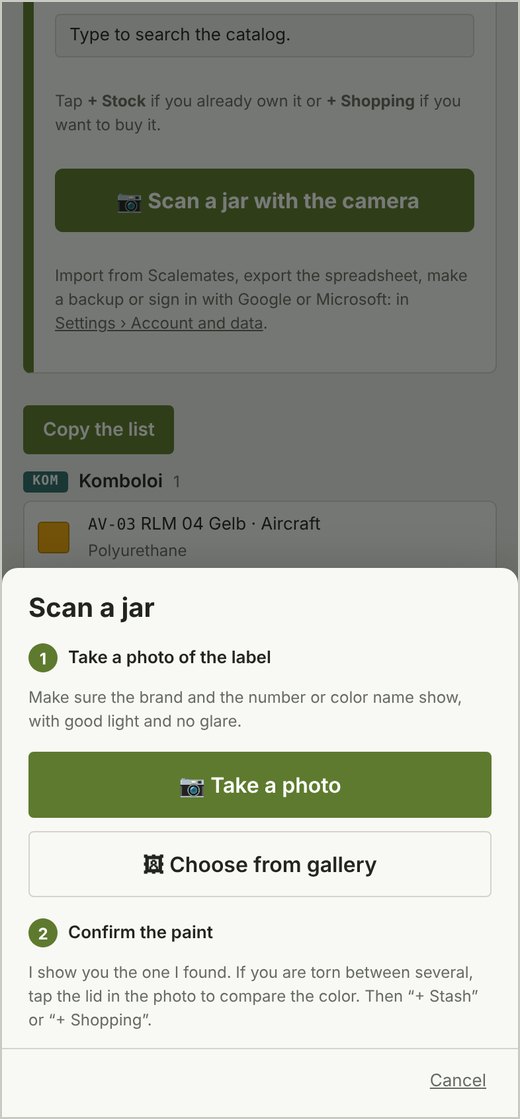
Instead of typing the code, you can read the jar's label.
- In My stash, tap Scan a jar with the camera.
- Take a photo of the label, with the camera or from the gallery. The code needs to be straight and sharp.
- Confirm the paint it recognized and tap + Stock or + Shopping. With Another photo you go on to the next jar; with Done you finish.
The reading happens on your own phone: the photo isn't sent anywhere. The first time it downloads the reader (about 7 MB). Tins with an embossed number, like Humbrol's, can't be read: look those up by brand and number.
Kits
Kits checks the colors a kit calls for against your stash and tells you what you have, what you're missing and what to replace it with.
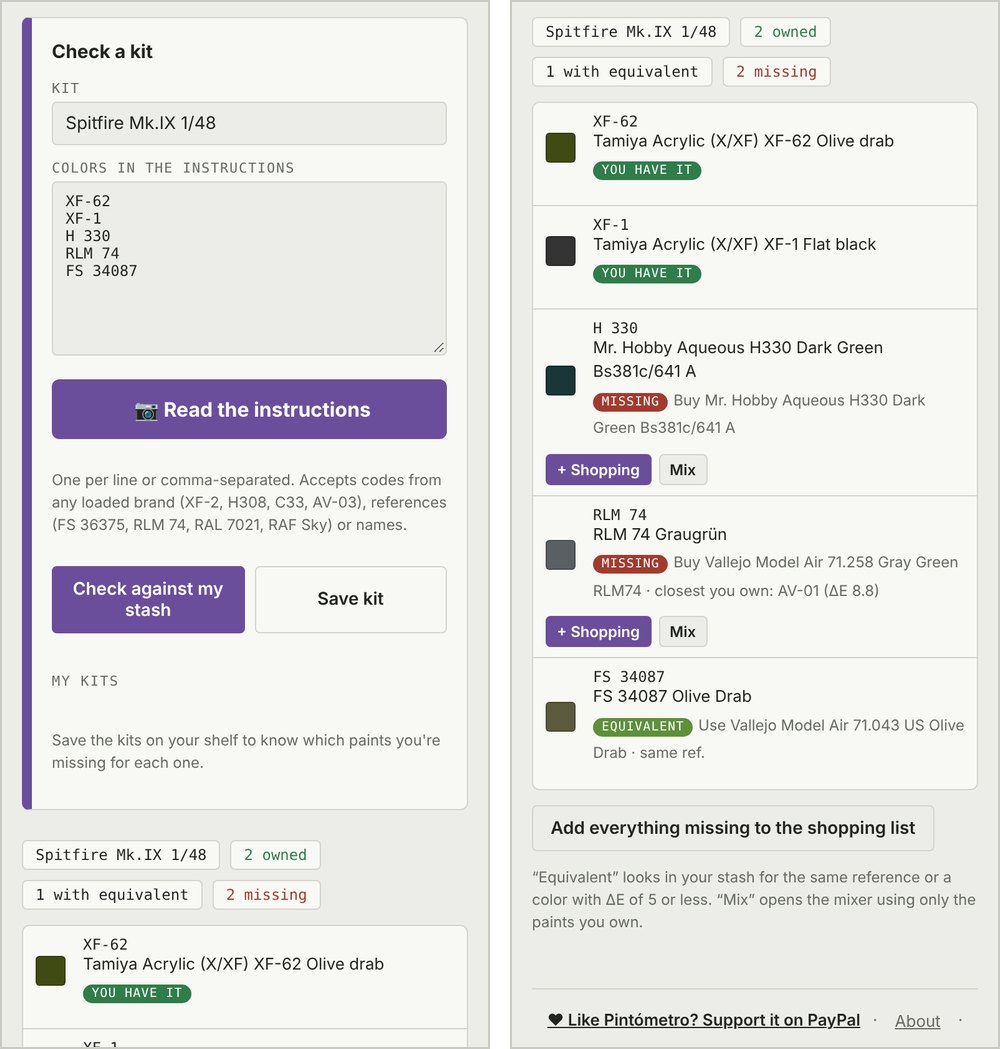
- Name the kit, for example "Spitfire Mk.IX Eduard 1/48".
- Add the colors in one of these ways:
- typing them, one per line: "XF-62", "H 330", "Revell 04", "FS 34087";
- or with Read the instructions: take one or more photos of the color table (camera or gallery). Pintómetro recognizes the codes, the references and tables with one column per brand, and shows them to you to confirm before adding them.
- Tap Check against my stash. Each color appears as:
- You have it.
- You have an equivalent: it tells you which.
- Missing: with buttons to add it to the shopping list or find a mix for it.
- Add everything missing to the shopping list puts the whole purchase together at once.
- Save kit keeps it in your list so you can check it again later.
To read the instructions, take the photo straight on, with good light and as close to the table as possible. If Pintómetro warns that it read little, try Another photo from closer: it's added to the same list. Photos of several pages take a bit longer.
Supplies
Supplies answers "what do I thin, clean or varnish this paint with?" and gathers varnishes, putties, glues, decal products and tools.
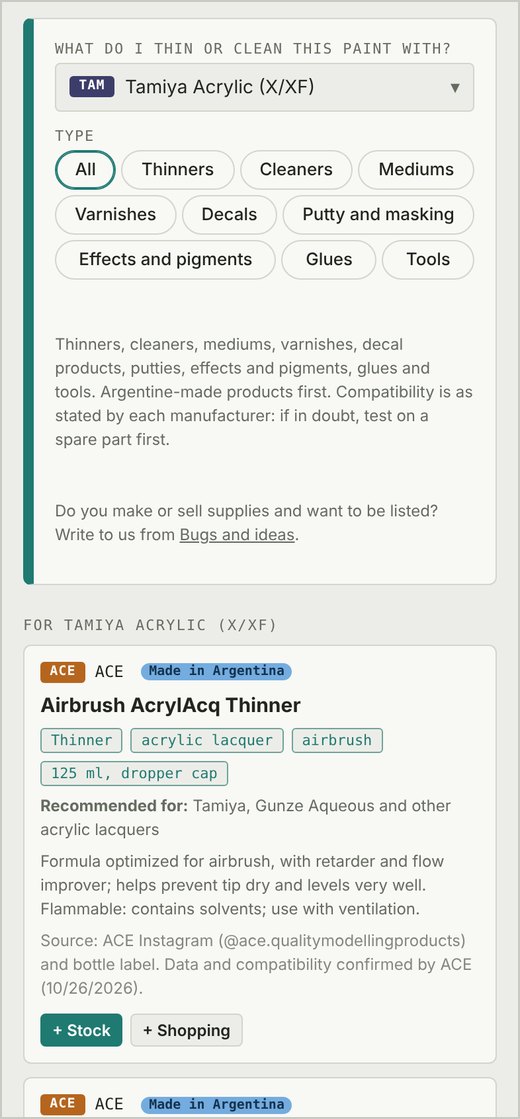
- In What do I thin or clean this paint with?, choose the brand and line you use, for example "Tamiya Acrylic (X/XF)".
- The compatible products appear: first the Argentine-made ones, then the ones the manufacturer recommends for that line, and then the ones from the same brand.
- Filter by type: Thinners, Cleaners, Mediums, Varnishes, Decals, Putty and masking, Glues or Tools.
- With + Stock or + Shopping you add them just like a paint. Tools only go to shopping.
Each card says what the product is for, its sizes and what it's compatible with.
Catalog and Brands
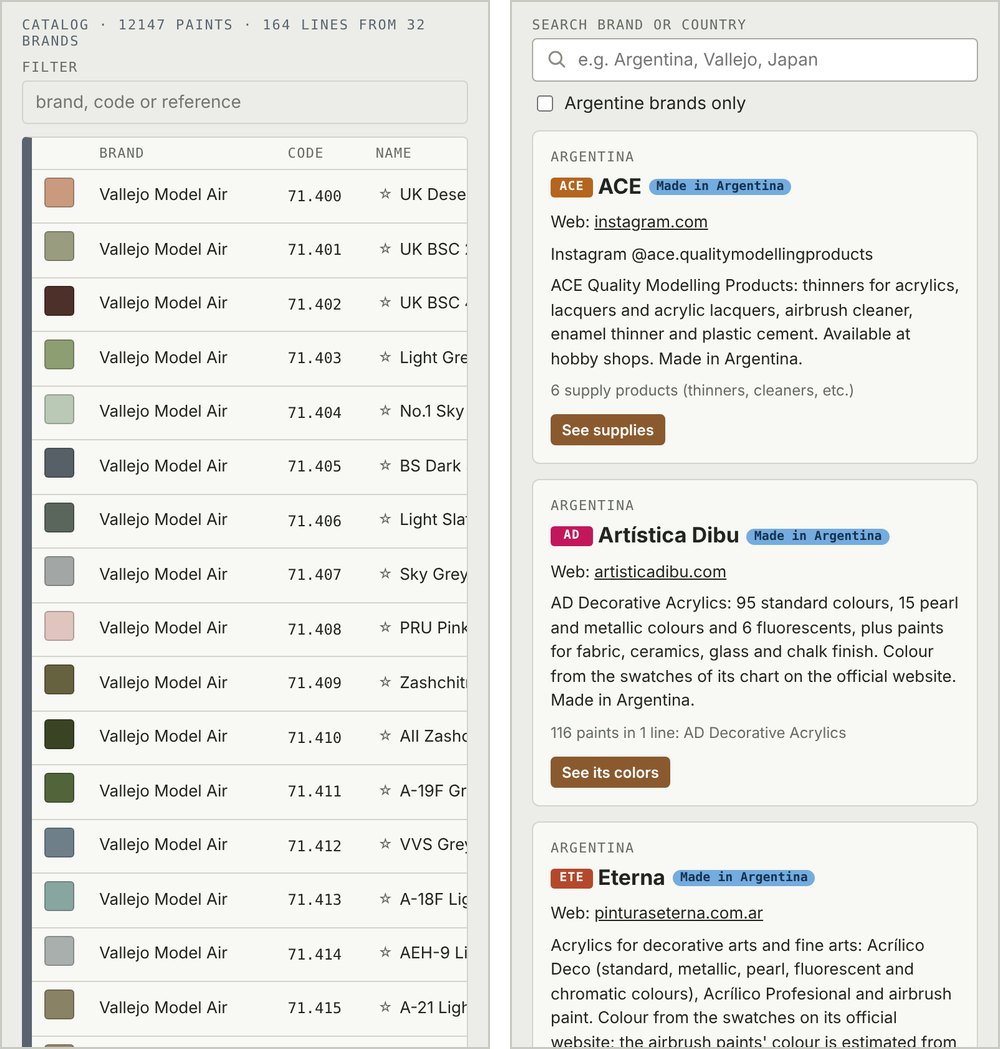
Catalog shows every paint of each brand and line in a table: code, name, Spanish name, finish and reference. It's useful to browse a whole line, mark the ones you have or add them to shopping.
Brands has a card for each manufacturer: country, website, social media and contact, with the Argentine brands first. From each card you can see its paints and its supplies.
If a paint is missing or some data is wrong, let me know from Bugs and ideas: the catalog is updated with every version.
Settings
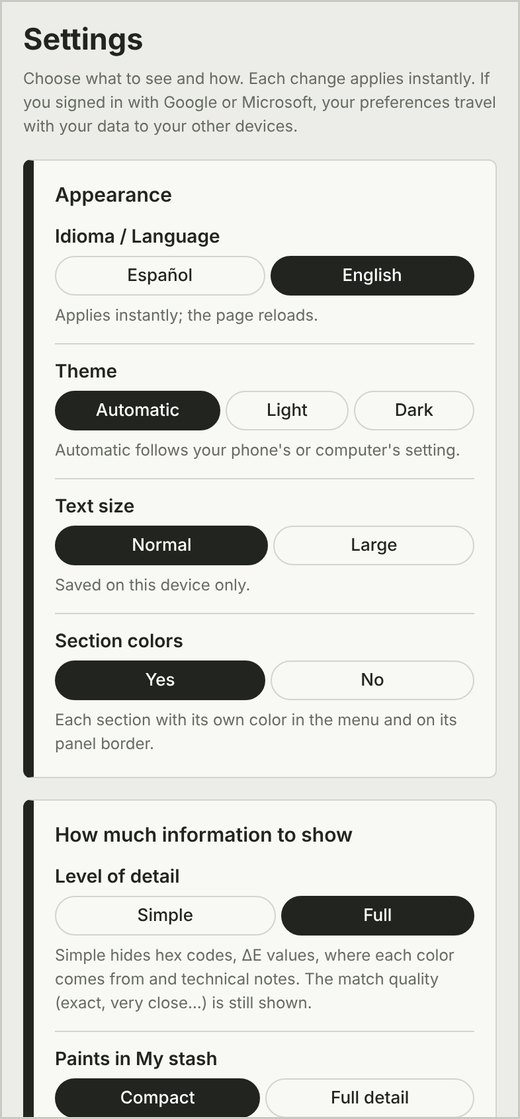
The ⚙ gear, at the end of the menu, opens Settings. There you tailor Pintómetro to your liking.
| Group | What you can change |
|---|---|
| Appearance | Language (Spanish / English), automatic, light or dark theme, text size and section colors |
| How much to show | Simple or Full detail, Spanish names on or off, compact or full My stash |
| Brands | My brands (first or only those) and Argentine brands first |
| Equivalents | How many to show per brand (1, 3 or 6) and up to what color difference. Declared and same-reference ones always show |
| Mix and stash | Mix defaults and whether a paint that runs out moves to shopping on its own |
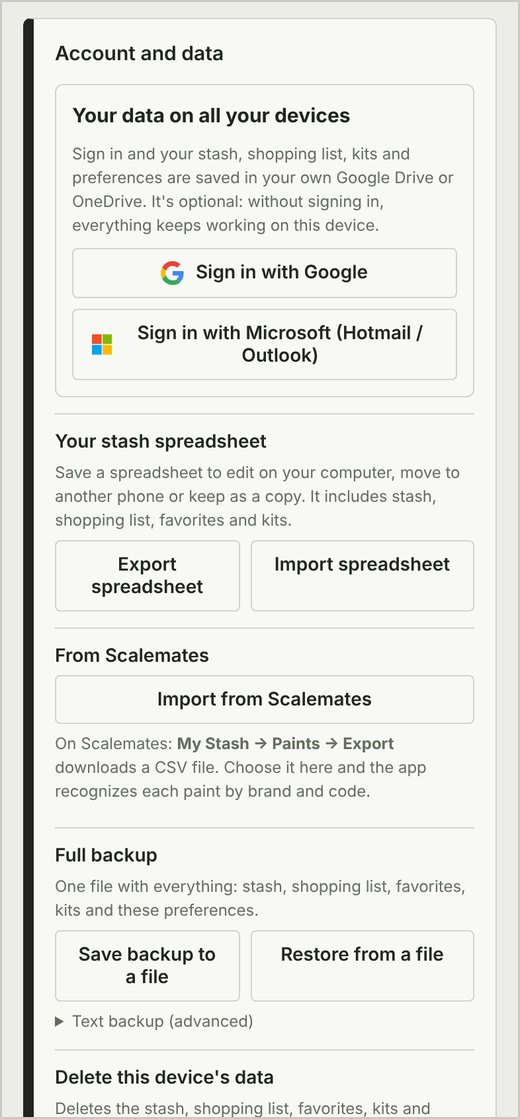
| Account and data | Google or Microsoft account, spreadsheet, Scalemates, backup and deleting the data |
| Other | Support reminder, see the welcome again and restore defaults |
Language, theme and text size apply to that device. The rest of the preferences travel with your account if you sync.
Your data in the cloud: Google Drive or OneDrive
Without an account, everything you add stays saved in that browser. If you sign in with Google or Microsoft, Pintómetro keeps a copy in your own cloud and you have the same data on your phone and your computer.
- Tap the cloud next to the logo (it says "Sign in"), or go to ⚙ › Account and data.
- Choose Sign in with Google or Sign in with Microsoft.
- Accept the permission the Google or Microsoft window asks for. Pintómetro can only see and change its own file: it doesn't see the rest of your files.
- In Google Drive it's a file created by the app.
- In OneDrive it's in the Apps › Pintómetro folder.
- Done: from then on, every change is saved to your account automatically.
- On your other device, open Pintómetro and sign in with the same account: your data appears.
The cloud next to the logo
| What you see | What it means |
|---|---|
| "Sign in" with a dashed border | You haven't signed in with any account |
| ✓ | Your data is up to date in the cloud |
| ↑ | There are changes that haven't been uploaded yet |
| Spinning icon | It's syncing |
| ⚠ | There was an error: tap the cloud to retry |
A tap on the cloud syncs right away. A long press (or right-click on a computer) opens ⚙ › Account and data.
Your stash, shopping list, kits, favorites and preferences are synced. Language, theme and text size stay on each device. If you want to remove Pintómetro's permission, you do it from your Google or Microsoft account settings; the steps are in the Privacy policy.
Scalemates, spreadsheet and backup
Bring your stash from Scalemates
If you already have your paints in your Scalemates stash, there's no need to enter them again.
On Scalemates (from a computer):
- Go to scalemates.com and sign in.
- Open your My Stash and go to the Export option.
- In the Paint section, tap Export to CSV. Either separator option works ("," or ";"); the PDF and TSV ones don't. A .csv file is downloaded.
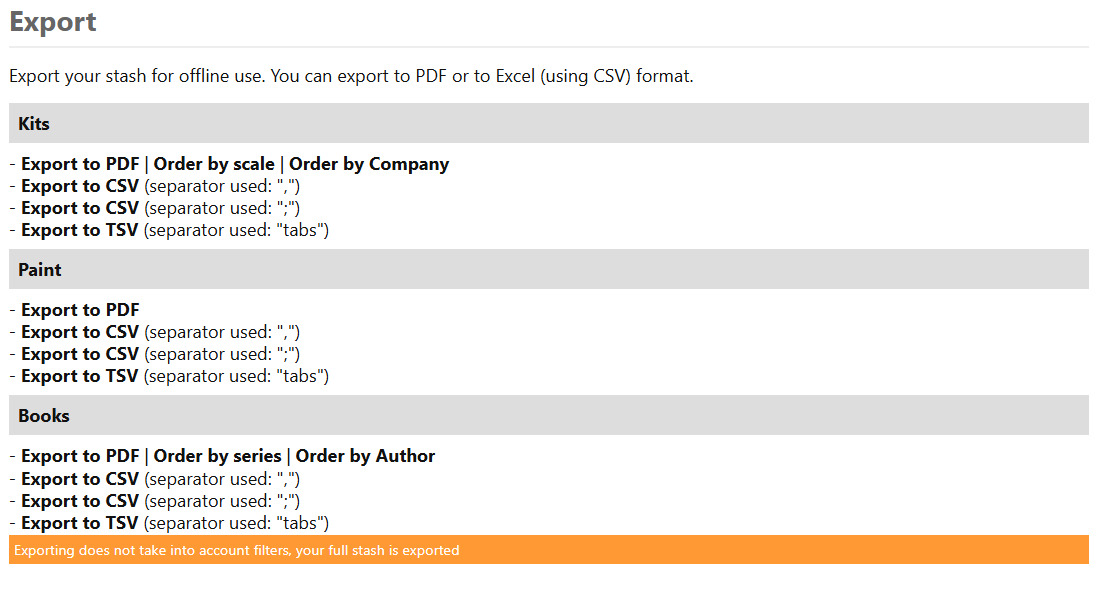
Scalemates always exports the whole stash, even if you have filters on, so there's nothing to prepare beforehand.
In Pintómetro:
- Go to ⚙ › Account and data.
- Tap Import from Scalemates and choose the file you downloaded.
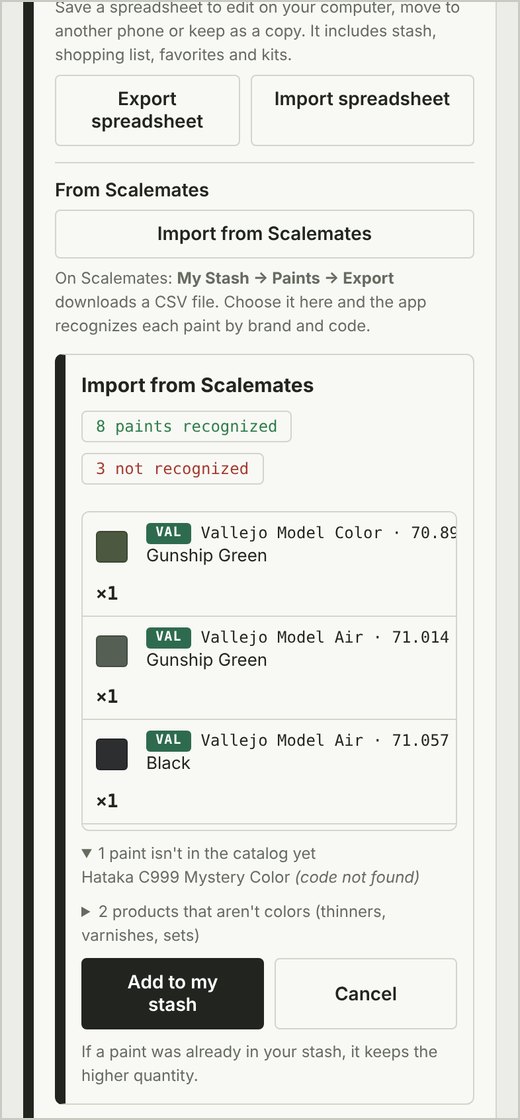
- Pintómetro shows how many paints it recognized by brand and code and which it didn't, separating the ones that aren't in the catalog yet from the products that aren't colors (thinners, varnishes, sets). Tap Add to my stash to add them. If a paint was already in your stash, it keeps the larger quantity.
If you do it on a computer and you're signed in with your account, the stash also shows up on your phone.
Spreadsheet (Excel or Google Sheets)
In ⚙ › Account and data, Export spreadsheet downloads your stash, shopping list, favorites and kits in a file that Excel or Google Sheets can open. You can edit it, add rows with brand, code and quantity, and load it again with Import spreadsheet.
Backup
Save backup to a file saves everything in one file: stash, shopping, kits, favorites and preferences. Restore from a file loads it again, on the same device or another one. It's useful if you don't use an account, or before clearing the browser's data.
Scalemates and each service's menus can change name or place; if you can't find a button, let me know and I'll update the guide.
Video tutorials
The videos are on the YouTube channel Pintómetro (@pintometro) and on Instagram @pintometro.app. They're under a minute each, narrated in Spanish.
Coming soon: Convert, Mix, My stash, Scan a jar, Kits, Supplies, Catalog and Brands, and Settings with your data.
Bugs, ideas and support
- Bugs and ideas: the link is at the bottom of the app. Tell me what happened or what you'd like; if you leave your email, I'll reply. You can also write to pintometro.app@gmail.com.
- Privacy: Pintómetro has no ads or usage tracking, and your data stays on your device or in your own cloud. The details are in the Privacy policy.
- Support the project: Pintómetro is free. If it's useful to you, you can chip in through PayPal.
- News: on Instagram @pintometro.app and on the YouTube channel.
What each version added
From 1.0.0 to today, Pintómetro went from about 9,100 paints from 23 brands to more than 12,000 from 32, and added the camera, the cloud, Settings and English.
| Version | Date | What was added |
|---|---|---|
| 1.9.2 | 10/31/2026 | This guide, in Spanish and English, linked at the bottom of the app; on phones, long names no longer get cut off in the search boxes; Mix no longer repeats the name of RAF references |
| 1.9.1 | 10/30/2026 | + Stock / + Shopping in Convert; "running low" hourglass in My stash; supplies in My stash and the shopping list; more flexible search (70601 = 70.601); Ammo Surface Primer; 60 and 200 ml codes for Vallejo Surface Primer |
| 1.9.0 | 10/30/2026 | Artística Dibu and Eterna, two new Argentine brands; Read color in three steps; Scan a jar in a window with steps; own contact email. 12,140 paints from 32 brands |
| 1.8.0 | 10/30/2026 | The cloud next to the logo with the sync status; Mix with brand and line in two steps; pickers with search and color swatches; occasional account and support reminders |
| 1.7.0 | 10/29/2026 | Kits › Read the instructions with one or several photos; main buttons in their section's color |
| 1.6.0 | 10/29/2026 | New menu design; The Army Painter, Citadel, Reaper, Scale75, Green Stuff World and PRO Acryl; complete Vallejo (True Metallic Metal, Squidmar, Liquid Metal and more); new Tamiya colors |
| 1.5.0 | 10/28/2026 | Pintómetro in English, with the language picked from the phone; donations through PayPal from abroad. 1.4.1 added acknowledgments in About |
| 1.4.0 | 10/28/2026 | ⚙ Settings (theme, text size, detail, Spanish names, my brands); welcome with questions; My stash grouped and compact; the wish list becomes the Shopping list, shared by WhatsApp. Includes 1.3.7: 25 new Vallejo Model Air colors (71.4xx) |
| 1.3.3 to 1.3.6 | 10/27/2026 | Own address pintometro.app and new hosting; Instagram link; data from the old address moves to the new one on its own; Google sign-in open to everyone |
| 1.3.2 | 10/27/2026 | Its own color for each section |
| 1.3.1 | 10/27/2026 | Alclad II; AK Interactive with its 2026 catalog; Vallejo Premium reviewed; home page and privacy policy |
| 1.3.0 | 10/26/2026 | Supplies section (thinners, varnishes, tools); Scan a jar with the camera; official historical Vallejo references |
| 1.2.0 | October 2026 | Sign in with Google or Microsoft; import from Scalemates; spreadsheet; favorites; mixes of up to 10 parts; bugs and ideas form |
| 1.0.0 | October 2026 | First complete version: Convert, Read color, Mix, My stash, Kits, Catalog and Brands. 9,109 paints from 23 brands, with Spanish names |